From BreakEnderGuide
Player-Side Optimization, Part 3: Frame Pacing and Input Latency
By the BreakEnder newsroom ·
High FPS is not the same as smooth. How VRR, frame caps, V-Sync and Reflex or Anti-Lag fit together for a game that feels right.
A game running at 140 FPS can feel worse than one locked at 100. What you feel is frame pacing, how evenly frames arrive, and latency, how long between your click and the result on screen. Get both right and the game feels sharp.
Frame time beats frame rate
FPS is an average. Frame time is how long each frame took. A steady 10 ms per frame is 100 FPS and feels smooth. A mix of 5 ms and 25 ms frames averages similar but stutters. Use an overlay with a frame time graph (part 6 covers tools) and aim for a flat line, not the highest number.
Variable refresh rate
VRR (G-Sync, FreeSync, HDMI VRR) makes the monitor refresh when a frame is ready instead of on a fixed clock. Inside the VRR range, there is no tearing and no V-Sync stutter. Turn it on in the monitor's menu, then in the GPU control panel. On Windows, also check Settings, System, Display, Graphics for variable refresh rate.
VRR only works inside a range, often 48 Hz up to the monitor's maximum. Go above the max and you are back to tearing or V-Sync behavior.
The cap that keeps you in range
The proven setup for VRR:
- VRR on
- A frame cap a few FPS below the refresh rate, for example 138 on a 144 Hz screen, or 237 on 240 Hz
- V-Sync on in the driver control panel (NVIDIA) and off in the game, as a safety net for frame time spikes
With Reflex or Anti-Lag enabled, the driver often applies a suitable cap automatically. Otherwise, use the game's own limiter first; in-engine caps usually give the lowest latency. If a game has no limiter, use the driver's (NVIDIA Max Frame Rate, AMD Frame Rate Target Control or Radeon Chill) or RivaTuner Statistics Server. On Linux, MangoHud's fps_limit or Gamescope's -r flag do the job.
GPU-bound means extra latency
When the GPU is maxed at 99%, frames queue up behind it, and each queued frame adds latency. This is why a cap that leaves the GPU a little headroom can feel more responsive than an uncapped game with higher FPS. It is also what Reflex and Anti-Lag address.
Reflex and Anti-Lag
NVIDIA Reflex, AMD Anti-Lag 2 and Intel XeLL are in-game options that keep the render queue nearly empty, so the CPU submits work just in time for the GPU. Where a game supports them, turn them on. "On + Boost" for Reflex keeps clocks higher; it helps a little when CPU-bound at the cost of power.
Driver-level options (NVIDIA Low Latency Mode, AMD's driver Anti-Lag) help in games without native support. Do not stack them with the in-game version; use the in-game one when available.
Frame generation
DLSS Frame Generation, FSR Frame Generation and similar techniques insert generated frames. Motion looks smoother, but input latency follows the real frame rate, plus a little overhead. It works best when the base frame rate is already decent, around 60 or more. For competitive shooters, real frames matter more; for single-player showcases, frame generation is a fine trade.
Mouse, polling and display
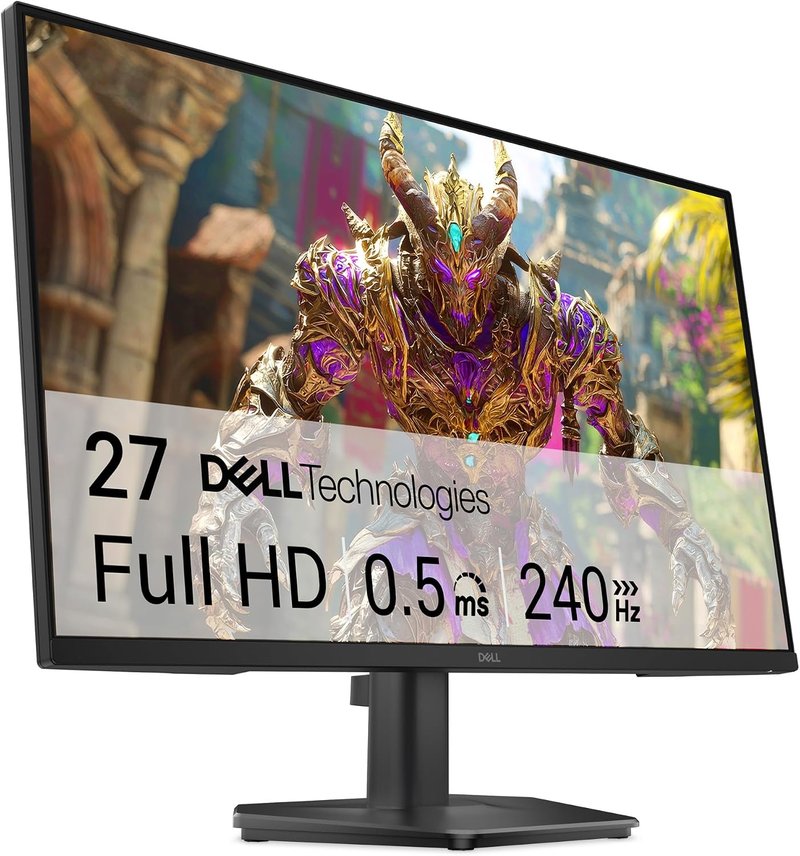 AmazonDell 24 240Hz gaming monitor SE2426HG on AmazonSee it on Amazon →As an Amazon Associate, BreakEnder earns from qualifying purchases.
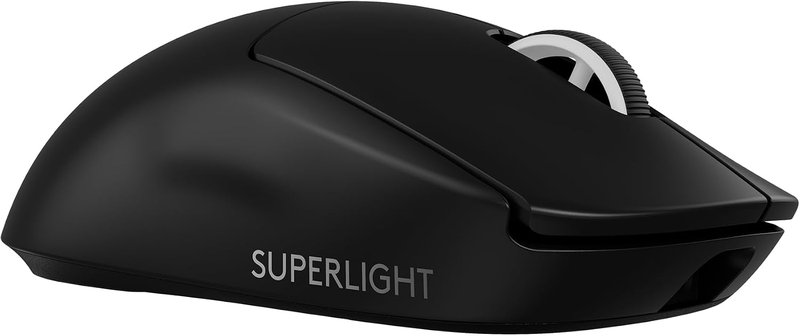 AmazonLogitech G Pro X Superlight 2 wireless gaming mouse on AmazonSee it on Amazon →As an Amazon Associate, BreakEnder earns from qualifying purchases.
Higher mouse polling rates (1000 Hz and up) reduce input delay slightly, but very high rates (4000 to 8000 Hz) cost CPU time and can cause stutter in some games. 1000 Hz is the safe default. Turn off monitor features that add processing, like heavy motion blur reduction modes you do not need, and use the monitor's game or low input lag mode. A faster panel helps too: Dell 24 240Hz gaming monitor (SE2426HG), Logitech G Pro X Superlight 2 wireless mouse.
Full screen versus windowed
On Windows 11, borderless windowed games get flip-model presentation and behave like exclusive full screen for latency. Turn on "Optimizations for windowed games" in Settings, System, Display, Graphics for older DirectX 10 and 11 titles. On Linux Wayland desktops, full screen and borderless both work well; Gamescope helps where they do not.
A sane default
If you just want a recipe:
- VRR on, game in full screen or borderless
- Driver V-Sync on, in-game V-Sync off
- Reflex or Anti-Lag 2 on if offered
- Cap 3 to 5 percent below refresh if the driver does not do it for you
- Lower settings until the frame time graph is flat in busy scenes
Then play. If it feels smooth and responsive, stop tweaking.
As an Amazon Associate, BreakEnder earns from qualifying purchases.