From BreakEnderGuide
Player-Side Optimization, Part 2: Linux Gaming Performance
By the BreakEnder newsroom ·
Proton, GameMode, MangoHud, drivers, governors and kernels: what to set up on Linux so games run as well as they can.
Linux gaming is in a good place. Proton runs most of the Steam catalog, and Mesa drivers on AMD and Intel are excellent. Getting the best results still takes a few deliberate choices. Here is what matters.
Drivers first
AMD and Intel GPUs use Mesa, which ships with your distribution. Newer Mesa means better performance and fixes, so a distro with recent packages (Fedora, Arch, or Ubuntu with a Mesa PPA) helps. Check your version:
glxinfo -B | grep -i "opengl version"
vulkaninfo --summary | grep -i driver
NVIDIA uses the proprietary driver, now with open kernel modules on recent cards. Install it through your distribution's packages, not the .run installer, so kernel updates do not break it. Turn on DRM kernel mode setting (nvidia-drm.modeset=1), which most distros now do by default and which Wayland requires. The Nouveau/NVK open stack is improving fast but is not the performance choice for gaming on most cards yet.
Proton and Steam
In Steam, Settings, Compatibility, enable Steam Play for all titles. Use the default Proton for most games. When a game misbehaves:
- Try Proton Experimental, which gets fixes first
- Try GE-Proton, a community build with extra patches, installed with ProtonUp-Qt
- Check ProtonDB for per-game notes: https://www.protondb.com
Launch options go in a game's Properties. Proton reads environment variables there, for example:
PROTON_ENABLE_NVAPI=1 %command%
That enables NVAPI for DLSS on NVIDIA. Keep your launch options minimal; stacking random variables from old guides causes more problems than it solves.
For non-Steam games, Lutris and Heroic manage Wine/Proton prefixes and work well with the tools below.
GameMode
Feral's GameMode applies temporary tweaks while a game runs: performance CPU governor, I/O priority, and on some systems GPU performance modes. Install the gamemode package and add to launch options:
gamemoderun %command%
Check that it is working with gamemoded -s while the game runs.
MangoHud
MangoHud is the Linux equivalent of an on-screen performance overlay: FPS, frame time graph, CPU and GPU load, temperatures and clocks. Install it and use:
mangohud %command%
Combine both: gamemoderun mangohud %command%. MangoHud can also cap frame rate with fps_limit in its config file (~/.config/MangoHud/MangoHud.conf), which is useful for frame pacing and for running several game clients at once.
CPU governor
The governor decides how aggressively the CPU ramps clocks. Modern AMD systems use amd-pstate, and Intel uses intel_pstate. Check what you have:
cat /sys/devices/system/cpu/cpu0/cpufreq/scaling_driver
cat /sys/devices/system/cpu/cpu0/cpufreq/scaling_governor
On amd-pstate active mode, "powersave" with the energy preference set to performance is not the slow mode it sounds like. GameMode or power-profiles-daemon set this for you. Switching to the performance profile is a simple win on desktops:
powerprofilesctl set performance
Kernel and scheduler
A recent kernel brings driver fixes and scheduler improvements. The EEVDF scheduler in mainline kernels handles games well. Gaming-focused kernels like linux-zen or CachyOS kernels may give small latency gains, but they are optional. Do not chase custom kernels before you have the basics right.
The setting that does matter for some titles is vm.max_map_count. Many newer games need a high value; several distros now ship 1048576 by default. Check it:
sysctl vm.max_map_count
If it shows 65530, raise it in a file under /etc/sysctl.d/.
Wayland, X11 and compositors
Modern KDE Plasma and GNOME on Wayland support VRR and handle full-screen games well. Gamescope, Valve's micro-compositor, can wrap a game to force resolution, frame limits and upscaling:
gamescope -W 2560 -H 1440 -r 144 -- %command%
It is especially handy for games that misbehave with multiple monitors.
Shader caches
Steam pre-caches shaders on Linux. Leave shader pre-caching on in Steam settings. Mesa also keeps its own cache; a bigger cache helps if you play many games.
Anti-cheat caveat
Some multiplayer games block Linux through their anti-cheat settings, even though the anti-cheat supports Proton. This is a developer decision; no tweak fixes it. Check areweanticheatyet.com before buying a competitive game for Linux.
Hardware that helps
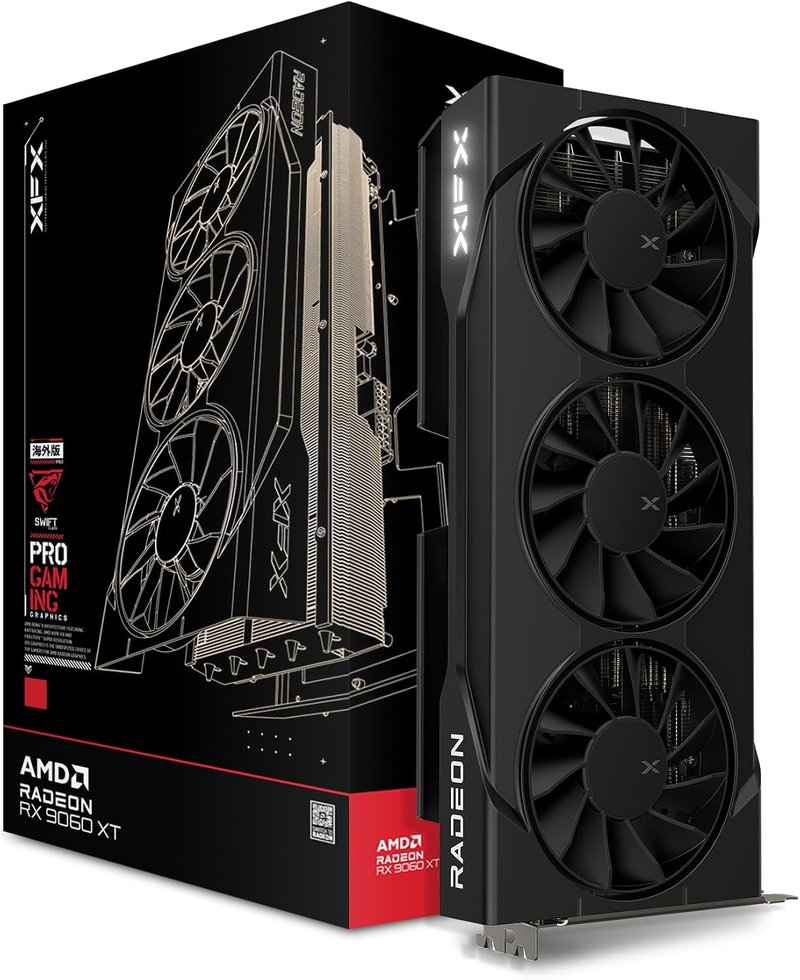 AmazonXFX Swift Radeon RX 9060 XT 16GB graphics card on AmazonSee it on Amazon →As an Amazon Associate, BreakEnder earns from qualifying purchases.
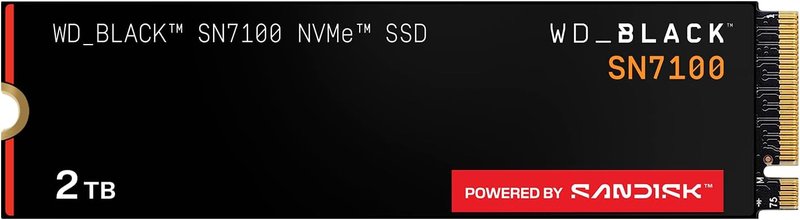 AmazonWD_BLACK SN7100 2TB NVMe SSD on AmazonSee it on Amazon →As an Amazon Associate, BreakEnder earns from qualifying purchases.
AMD GPUs remain the least-friction choice on Linux: XFX Swift Radeon RX 9060 XT 16GB. A fast NVMe drive helps with shader compiles and load times: WD_BLACK SN7100 2TB NVMe SSD.
Keep it simple
Start with a current distro, current drivers and default Proton. Add GameMode and MangoHud. Only then reach for launch options, custom Proton builds or different kernels, and change one at a time so you know what helped.
As an Amazon Associate, BreakEnder earns from qualifying purchases.