From BreakEnderGuide
Player-Side Optimization, Part 1: Windows Settings That Actually Matter
By the BreakEnder newsroom ·
Skip the registry snake oil. These are the Windows settings that change how games run, and the trade-offs behind each one.
Most "Windows optimization" guides are a pile of registry tweaks copied from 2012. A few settings really move frame rates and latency. Everything else is noise or risk. This part covers the ones worth your time on Windows 10 and 11.
Power plan
On a desktop, use Balanced or High performance. Balanced on modern CPUs already ramps clocks quickly, and AMD and Intel tune their chips around it. High performance keeps clocks and voltages higher at idle, which can help in light CPU-bound games but adds heat and power draw. Ultimate Performance rarely helps a gaming desktop.
On a laptop, the power mode slider and being plugged in matter far more. Gaming on battery means lower power limits, period.
Open Settings, System, Power to change the mode. For the classic plans, run this in a terminal:
powercfg /list
powercfg /setactive SCHEME_MIN
SCHEME_MIN is the High performance alias; SCHEME_BALANCED returns you to Balanced.
Game Mode
Leave Game Mode on. It deprioritizes background work like Windows Update installs while a game is focused. Early versions caused stutter in some titles; current builds are fine. Settings, Gaming, Game Mode.
Hardware-accelerated GPU scheduling (HAGS)
HAGS moves part of GPU memory scheduling from the CPU to the GPU. It is required for DLSS Frame Generation on NVIDIA and is generally neutral to slightly positive on modern cards and drivers. If you see new stutter after enabling it, test with it off. Settings, System, Display, Graphics, Change default graphics settings. A reboot is required.
VBS and Memory Integrity: the honest trade-off
Virtualization-based security and Memory Integrity (HVCI) protect the kernel from malicious drivers. They also cost some performance, usually a few percent, more in CPU-bound games on older CPUs. Microsoft itself documents turning them off as an option for gamers.
This is a security decision, not a free tweak. If you install random mods, cheats or cracked software, keep it on. If you want the frames and understand the risk, you can turn Memory Integrity off under Windows Security, Device security, Core isolation. Check whether VBS is running by opening msinfo32 and reading "Virtualization-based security". Some anti-cheat systems now require these features, so a game may simply refuse to run without them.
Background apps
You do not need to strip Windows. You need to stop the few things that actually compete with games:
- Overlays you do not use: Discord, Steam, GeForce/NVIDIA app, Xbox Game Bar. Keep one, disable the rest
- RGB software that polls hardware constantly; some suites are notorious for DPC latency spikes
- Browser tabs with video or heavy pages on a second monitor
- Cloud sync clients uploading during play
- Startup apps: Task Manager, Startup apps tab, disable what you do not need at boot
Do not disable services you do not understand. "Debloat" scripts regularly break the Store, updates and Xbox sign-in, which then breaks Game Pass titles.
Driver hygiene
Install GPU drivers from NVIDIA, AMD or Intel directly. Windows Update sometimes pushes an older driver; you can stop that by installing the vendor package after major updates.
When switching GPU brands or chasing strange crashes, clean the old driver out with Display Driver Uninstaller (DDU) from Wagnardsoft: https://www.wagnardsoft.com. The safe method:
- Download the new driver first
- Disconnect the internet so Windows does not auto-install a driver mid-process
- Boot into Safe Mode, run DDU, choose Clean and restart
- Install the new driver, then reconnect
You do not need DDU for every routine update. Use it when changing vendors or fixing a broken install.
Also keep chipset drivers current, especially on AMD platforms, and update the BIOS when it fixes something you care about.
Memory and display basics
Two settings outside Windows matter more than any tweak above. First, enable XMP or EXPO in the BIOS; without it, your RAM runs at a slow default speed. Second, confirm your monitor is running at its full refresh rate: Settings, System, Display, Advanced display. A 144 Hz monitor stuck at 60 Hz is the most common "my PC feels slow" problem we see.
What to ignore
- Registry tweaks for "network throttling" or "system responsiveness" from old forum posts
- Disabling the page file; games and drivers expect one
- Timer resolution tools sold as magic fixes
- "Game booster" apps that just close programs you could close yourself
Test, do not guess
Change one thing at a time and measure. A setting that does nothing on your hardware is not worth keeping just because a video said so.
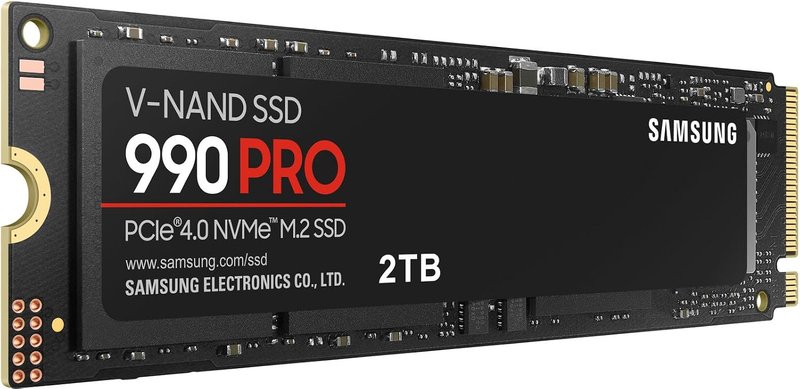 AmazonSamsung 990 PRO 2TB NVMe SSD on AmazonSee it on Amazon →As an Amazon Associate, BreakEnder earns from qualifying purchases.
If you are rebuilding or upgrading, a faster NVMe drive or more RAM helps loading and stutter more than any Windows setting: Samsung 990 PRO 2TB NVMe SSD, Corsair Vengeance RGB DDR5 32GB (2x16GB) 6000 CL30 kit.
As an Amazon Associate, BreakEnder earns from qualifying purchases.